


Simple Guide to Managing Backups in cPanel
At Valla Hub, we prioritize the security of your data by offering daily backups to ensure your website information is continuously safeguarded. Whether you need to restore files, databases, or your entire site, our backup tools in cPanel are designed to make the process easy.
In this guide, we’ll show you how to access and manage your backups, including the Backup, JetBackup 5, and Backup Wizard features.
Accessing Backup Tools in cPanel
To begin managing your backups, follow these steps:
1. Start by logging into your cPanel through the Valla Hub client area.
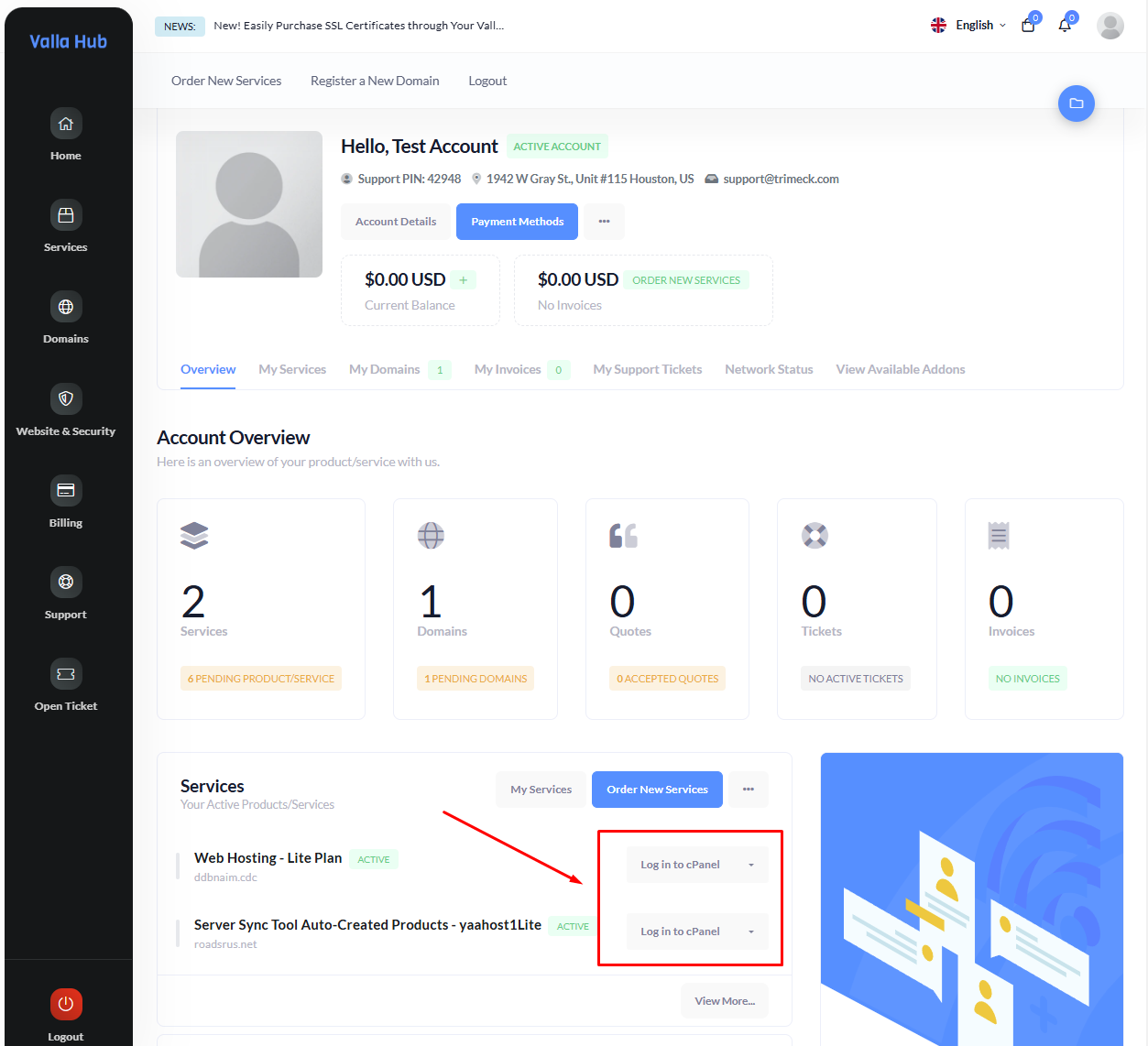
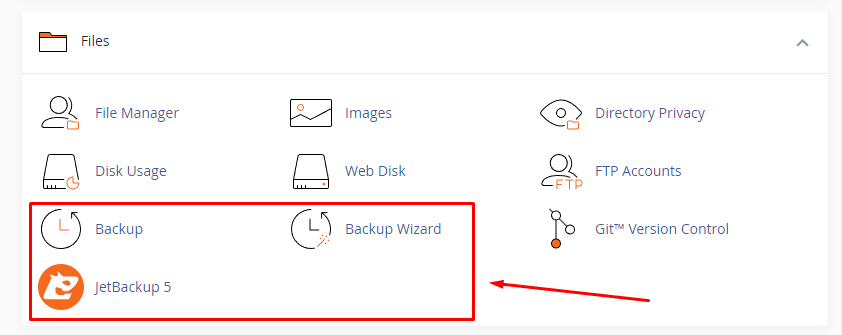
2. Once inside cPanel, scroll down to the Files section. Here, you'll see three essential tools for managing your backups:
- Backup
- JetBackup 5
- Backup Wizard
How to Use the Backup Tool
The Backup option provides a straightforward way to create and download backups manually. Here’s how to use it:
-
Full Backup
- Click on the Backup icon.
- Under the Full Backup section, click Download a Full Website Backup. This will create a backup of your entire site, including all files, databases, and emails.
-
Partial Backups
- If you prefer to backup specific sections (like home directory, databases, or email forwarders), select the corresponding option under Partial Backups.
- If you prefer to backup specific sections (like home directory, databases, or email forwarders), select the corresponding option under Partial Backups.
How to Use JetBackup 5
For enhanced functionality, we recommend using JetBackup 5, which automates and manages backups for you.
-
Access JetBackup 5
- Click on the JetBackup 5 icon in the Files section.
-
Daily Automated Backups
Valla Hub provides daily backups of your entire account. To access these backups, select Restore & Download to view available backups. You can choose from the latest daily backups and restore files, databases, or the entire account as needed. -
Restoring Files
- To restore a file or folder, select File Backups and browse the backup to find what you want to restore.
- Click Restore to revert to the previous version.
-
Database Restores
- Select Database Backups to view available backups of your databases.
- Choose the desired version and click Restore to revert your database to a previous state.
How to Use the Backup Wizard
The Backup Wizard is a user-friendly tool that simplifies the backup and restoration process. Here’s how to use it:
-
Access the Backup Wizard
- Click on the Backup Wizard icon in the Files section.
-
Creating a Backup
- Choose the Backup option from the wizard. You can create a Full Backup or Partial Backups for specific data like home directories, databases, or email forwarders.
-
Restoring a Backup
- The wizard also offers a Restore option. Select the type of backup (home directory, database, etc.), upload your backup file, and the system will restore the selected data.
- The wizard also offers a Restore option. Select the type of backup (home directory, database, etc.), upload your backup file, and the system will restore the selected data.
With daily backups and user-friendly tools like Backup, JetBackup 5, and the Backup Wizard, Valla Hub ensures that your website is protected and recoverable at any time. Whether you're restoring a single file or your entire site, the process is fast and simple.
Should you need further assistance with backups or any other services, don’t hesitate to contact our support team for guidance.